There are plenty of reasons to take a conversation out of ChatGPT. You want the answer in your notes. A colleague asked to see how you got there. You're about to clear out old chats and want a copy first.
The catch is that the obvious route exports far more than you wanted.
What does ChatGPT's own export do?
In ChatGPT, go to Settings, then Data controls, then Export data. ChatGPT prepares a file and emails you a link to download it.
That is a copy of your whole account history, not one chat. It's the right tool for a full backup. It's an awkward one for "send Priya that conversation", because you wait for an email and then dig one chat out of a big archive.
For a single chat, the usual trick is your browser's print dialog: press Cmd+P (Ctrl+P on Windows), choose "Save as PDF". It works, and it's quick. The layout is whatever the browser makes of the page, so you get what it gives you.
Selecting everything and pasting into a document also works, with the usual loss of formatting in code blocks and lists.
How do you export one chat with Recallery?
Recallery adds an export for the chat you're looking at, on ChatGPT, Claude, Gemini and Grok.
- Open the command palette with
Cmd+Shift+K(Ctrl+Shift+Kon Windows and Linux) and choose Export this chat. - Pick a format. Markdown is selected by default.
- Press Export chat. The file downloads.
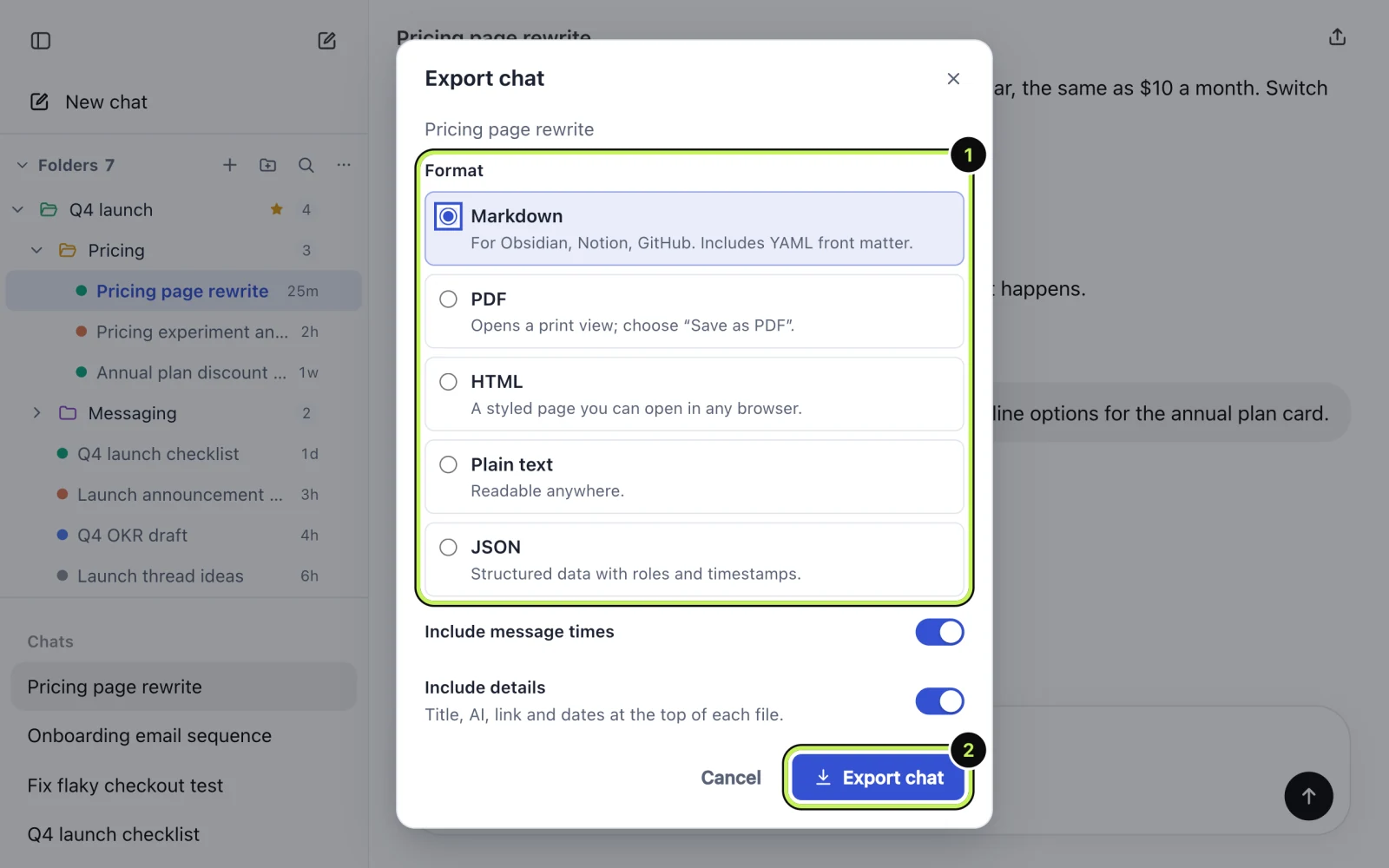
Two switches sit under the formats: whether to include message times, and whether to include details such as the title, which AI it was, the link and the dates at the top of the file.
Which format should you pick?
- Markdown for notes apps and anything that reads plain text with headings. It's meant for tools like Obsidian, Notion and GitHub, and it adds front matter at the top. Code blocks stay code blocks.
- PDF to send to someone. It opens a print view for you and you choose "Save as PDF" in the browser's dialog.
- HTML if you want a styled page that opens in any browser and keeps its formatting.
- Plain text for the simplest, most portable copy.
- JSON if you want the messages as data, with roles and timestamps, for your own scripts.
If you're not sure, take Markdown. You can turn it into almost anything else.
Can you export several chats at once?
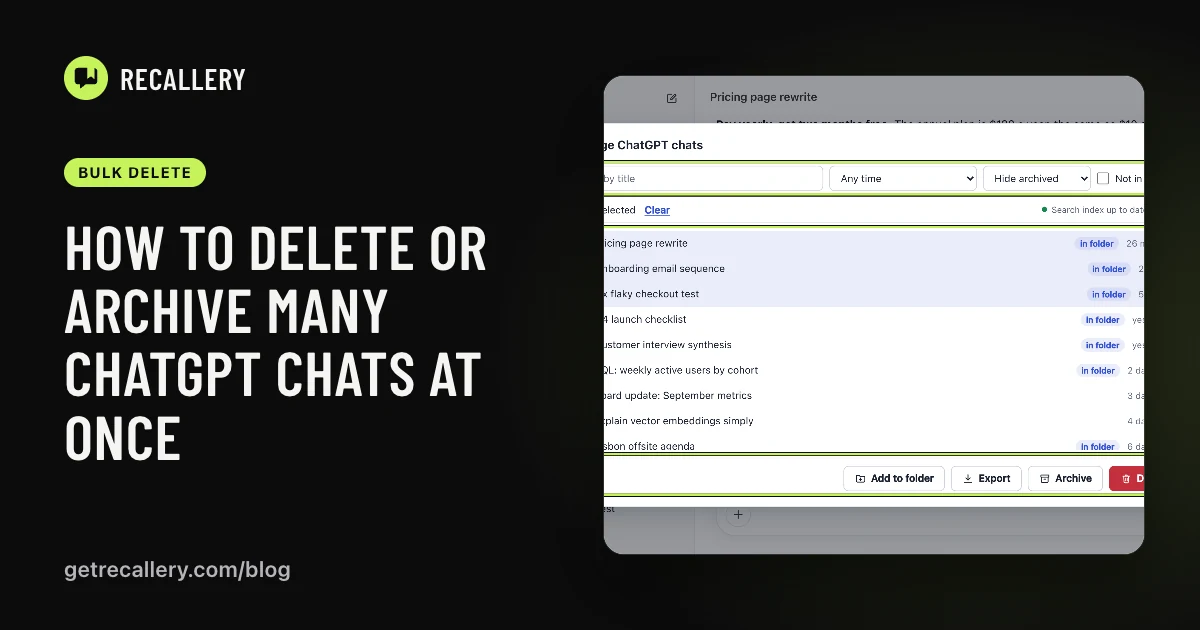
Yes, on the Pro plan. Open the command palette and choose Manage chats, tick the chats you want and press Export. You get one ZIP with a file per chat. PDF is the exception: all the chats open in one print view, each starting on a new page.
The free plan exports one chat at a time. There's more on Manage chats in the guide to bulk delete and archive.
Does exporting upload the chat anywhere?
No. The file is built in your browser and saved to your downloads folder. There's no Recallery server, so nothing about the conversation leaves your computer.
What if a chat can't be exported?
If a chat can't be read, Recallery tells you which one was missed instead of quietly leaving it out of the file.
Questions people ask
Can I export a Claude or Gemini chat? Yes, the same command works on all four sites.
Does the export keep images and attachments? Don't rely on it for those. The export is built for the text of the conversation.
How is this different from ChatGPT's Export data? That one is a full-account archive delivered by email. This one is a single chat (or a few you choose) saved straight to your computer.