The price of keeping your data on your own computer is that it's your job to look after it. That's a fair trade for most people, and it's the one Recallery makes: no account, no cloud copy, nothing about your chats on anyone's server.
It does mean one thing is worth five minutes: make a backup before you need one.
Where does Recallery keep my prompts and folders?
In your browser's own storage for the extension, on your computer. There is no Recallery account and no server holding a copy, which is also why nobody else can read it.
So the library is as safe as your browser profile. It survives restarting Chrome and updating the extension. It doesn't survive:
- uninstalling the extension;
- clearing the extension's data;
- a new computer or a new browser profile;
- a wiped or lost machine.
None of those is likely on a given day, and every one is annoying if you've spent months building up 60 prompts.
How do you make a backup?
- Open the Recallery dashboard (command palette
Cmd+Shift+K, then "Open the Recallery dashboard"). - Go to Settings and scroll to Backup & restore.
- Press Download backup.
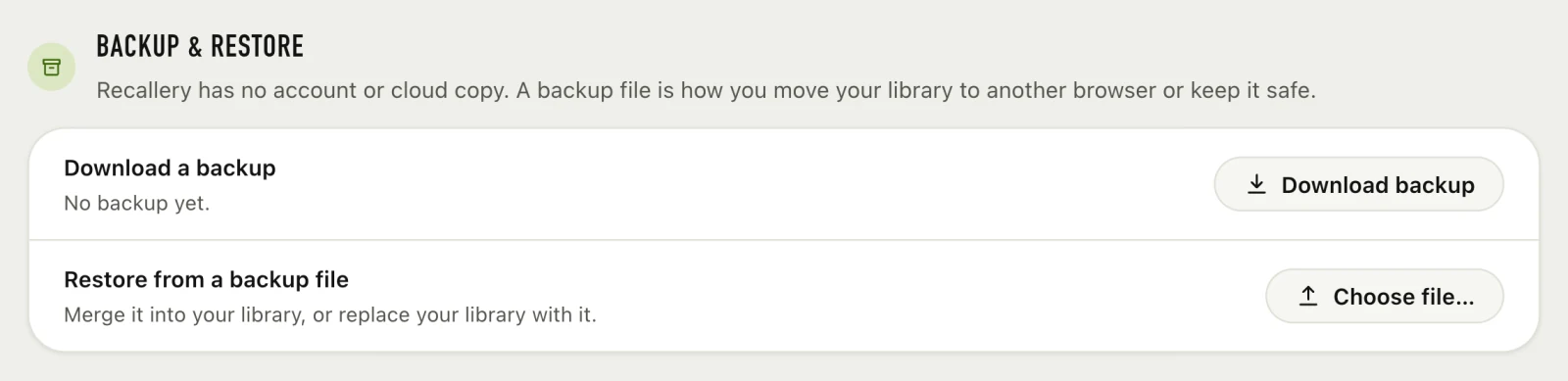
You get a single file. Put it somewhere that is itself backed up: a synced folder, a cloud drive, a USB stick. Check the section's status line now and then. It tells you whether you have a backup yet.
What's in it: your folders, prompts, chains, bookmarks and custom tags. It's the library you built, not the AI chats themselves, which stay on the AI sites.
How do you restore from a backup?
On the same settings page, under Restore from a backup file, press Choose file and pick the backup. You choose how it's applied:
- Merge adds what's in the file to what you already have. Use it when moving to a new browser, or combining two libraries.
- Replace swaps your library for the one in the file. Use it to roll back.
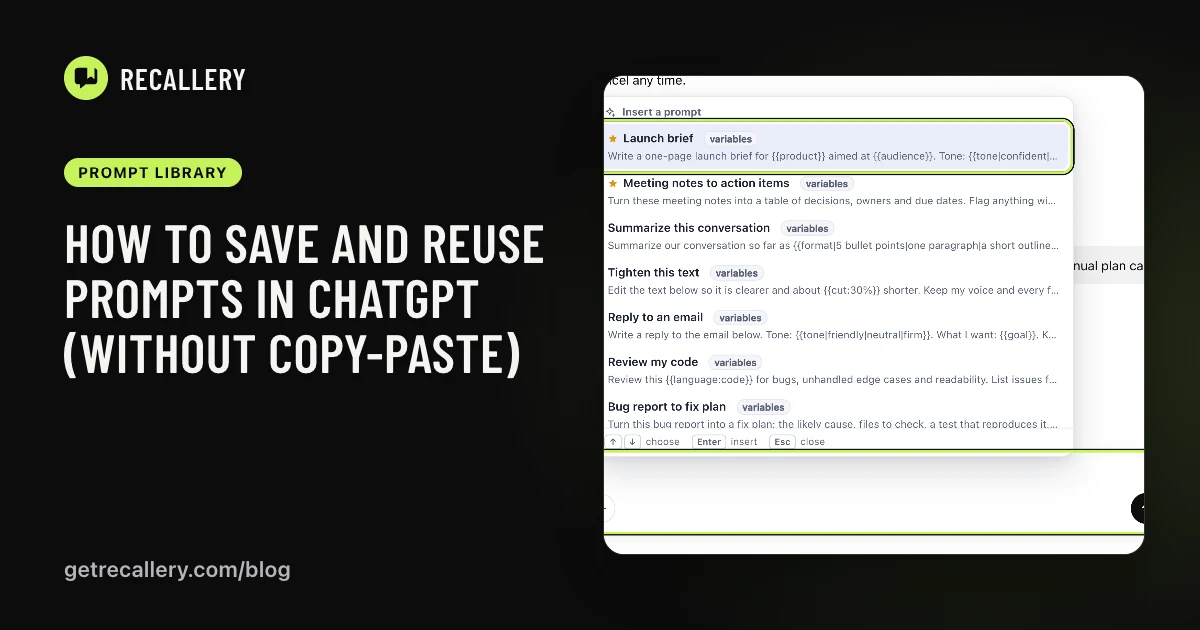
On a new computer, install the extension, open Settings and restore. Your prompts show up in the // picker straight away.
What if you only want your prompts?
The Prompts page on the dashboard has Import and Export buttons for just the prompts. It's a lighter way to share a set with a colleague, or to keep a readable copy of your best ones.
Sharing a prompt set is also a good way to get a team onto the same wording: export, send the file, they import it. See saving prompts for how the library works.
How often should you back up?
Whenever you've added something you'd hate to retype. In practice that's once a month, or before you do something to the browser: reinstall, clear data, change computers. Setting a recurring calendar reminder is dull and it works.
Does your Pro license go into the backup?
No. Your Pro license token isn't included in backups, so a backup file is safe to keep in a shared folder without handing over your plan. On a new machine you activate Pro again there.
Questions people ask
Is the backup encrypted? Don't assume so. Treat it as a plain file that holds your prompts, which may include private wording. Store it somewhere you trust.
Can I use the backup in a different browser? Yes. That's what it's for. Install Recallery there and restore.
Does it sync between my computers by itself? No. The library is stored locally, so moving it is a manual backup and restore.